
Creating MMD(MikuMikuDance) on the Web
This post will explain what MikuMikuDance is and how to create MikuMikuDance videos on the web. Plask can import pmx files, which are the format for MikuMikuDance objects, along with their associated textures.
The physics engine for hair, clothes, and other elements is also supported, allowing you to create videos with quality similar to traditional MikuMikuDance quickly and easily.
Table of Contents:
- What is MMD (MikuMikuDance)?
- Components of MMD (MikuMikuDance) models
- Creating MMD (MikuMikuDance) on the Web
What is MMD (MikuMikuDance)?

MikuMikuDance… MMD is a free 3D animation software created by Yu Higuchi that lets you create animations and videos. Search YouTube for MMD to see some of the literally MILLIONS of MMD videos posted online.
MikuMikuDance runs only on Windows computers. As of this note, 12/10/19, MMD version 9.32 and 9.32×64 are the latest versions of this DirectX “game”. You will need a PC with a mouse and a strong graphics card (at least 1Gb cache) to enjoy all of MMD’s features. Follow THIS LINK to see which OTHER softwares are required in order to run MMD.
MMD lets you create animations and output them to video for your upload to YouTube, and the like. Hatsune Miku is the star of the show… but fans have created THOUSANDS of models and made them available for free download. LearnMMD.com aims to be THE instructions for this software… no instructions are included in your download.
MMD is FREE… no charge!
The entire MMD “system” is no charge: FREE … there ARE a few modelers who charge for their privately created custom models, but when seen from a Global Scale, MMD costs nothing to use and enjoy.
WELCOME to the world of Vocaloids and MikuMikuDance!
Let me say at the outset… I love MikuMikuDance… the design of it, the complicated frustration of it, the colors, the characters, and the total creativity it requires and inspires in its users. The MikuMikuDance (MMD) world is huge with literally millions of finished videos and pieces of art posted online across the globe… MMD
and the Vocaloid products are represented in the videos as well as in toys and collectible figures… mouse pads, video games, mugs, key chains, cell phone fobs and fine art in all media. The huge burst of human creativity on a global scale centering around Miku and her compadres in just a few year’s time is astounding!
source: https://learnmmd.com/what-is-mikumikudance/
Components of MMD (MikuMikuDance)
Model File (.pmx)
PMX (Polygon Model eXtended) and PMD (Polygon Model Data) are 3D model file formats used in MMD. They not only define the model's shape but also allow for physics simulations on specific parts of the model (like hair, clothes, etc.) using Rigid Bodies and Joints. You can set properties such as gravity, collision, and elasticity for natural movement. They support both IK (Inverse Kinematics) and FK (Forward Kinematics) for efficient pose and animation creation.
Key components:
a) Mesh: A polygon network defining the 3D shape of the model
b) Skeleton: A hierarchical bone structure controlling the model's movement
c) Material: Defines the color, texture, shine, etc. of the model's surface
d) Morph: Vertex deformation data for facial expressions or shape changes
e) Rigid Body: Collision objects for physics simulations
f) Joint: Constraints connecting Rigid Bodies
Texture File (.png, .jpg, .tga)
These are usually PNG, JPG, or TGA image files applied to the model's surface to represent detailed appearance. The pmx file stores which texture is used on which surface and reads the file path.
Animation File (.vmd)
VMD (Vocaloid Motion Data) is a file format for storing animation data.
Included information:
a) Skeleton animation: Position and rotation information of bones for each frame
b) Morph animation: Time-based values for facial expressions or shape changes
c) Camera movement: Changes in position, angle, zoom, etc. of the virtual camera
d) Lighting settings: Changes in color, intensity, direction, etc. of scene lighting
DirectX Files (.x, .fx)
The main reason for using .x and .fx files together in MMD is to apply complex and beautiful rendering effects (.fx) to basic 3D models (.x). This combination allows users to add advanced visual effects to simple models, creating more attractive and unique characters or scenes. For example, you can apply cell shading effects to a basic character model to create an animated look, or add reflection effects to specific objects for a more realistic feel. This combination greatly enhances the visual quality of MMD works and provides creators with greater freedom of expression.
- .x files are a 3D model data storage format used in DirectX. These files contain the basic structure of 3D objects, including mesh, material, and texture information. They were mainly used in early versions of MMD and are text-based, allowing for direct reading and modification.
- .fx files are DirectX Effect files that contain shader programs defining how 3D models are rendered. They are written in HLSL (High Level Shading Language) and are used to implement advanced visual effects. This allows for the application of various visual techniques such as cartoon rendering, advanced lighting, and environment mapping.
Creating MMD (MikuMikuDance) on the Web
Plask is the only tool that allows you to upload MMD and render animations on the web. We will upload a pmx file to Plask. Instead of using a vmd file for animation, we'll perform Video MoCap and apply it to the character model. We'll then add Camera animation and Post-processing, rendering everything into a video in under 10 minutes.
For more detailed guides on features, please refer to 🔗Quick Guide.
Uploading PMX Files
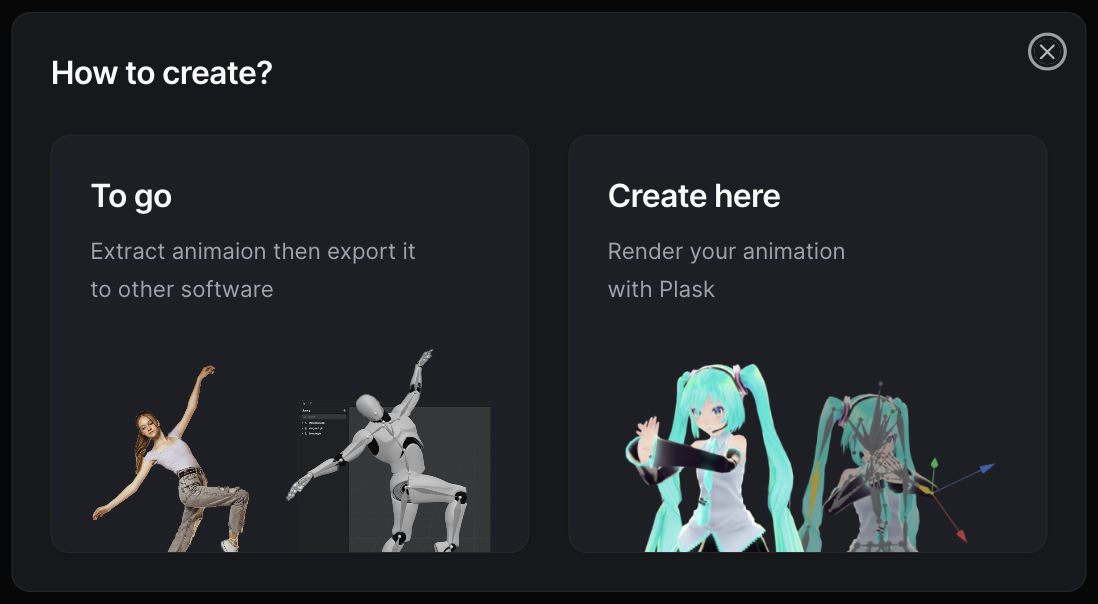
First, create a new Scene from the Dashboard. Selecting Create here mode will add Camera and Light presets.
- Click the Import button in the Model section of the Asset menu on the right panel. When you select the PMX format, you can import a directory containing the pmx file and texture files in their respective paths. Note: There should be only one pmx file in the root directory.
- Once the import is complete, a Model Asset is added on the right, and it's visualized in the Scene.
Mode sourcel : YYB Miku Default edit - YYB / HB-Squiddy / FreezyChan-3Dreams
Creating Animation from Video
- Drop the video you want to turn into animation. We referenced the recently popular iiichallenge dance.
Video source: https://www.youtube.com/shorts/u8nr84PN3WU
- Drop the Video file you want to extract, select the desired options, and click Extract.
- Once extraction is complete, an Animation Asset will appear on the right.
- Drop the extracted Animation onto the added Model.
- The applied Animation will be shown in the timeline at the bottom. If the Animation isn't visible because a specific joint is selected, double-click on an empty space to deselect.
Creating Camera Animation
- Adjust the model's position appropriately while viewing the Camera view.
- Set up a Constraint so that the Camera faces the model.
- Use the Director feature in the bottom right to automatically generate Camera Animation.
Video rendering
- Apply post-processing effects like Bloom, DoF, etc.
- Set the frame range to extract and the video ratio, then render to video.