
Frequently asked questions
How much does it cost to use Plask?
Plask Motion offers three plan options: the Freemium Plan, which is free; the Standard Plan, a paid subscription with a limited number of credits and faster processing; and the Pro Plan, which offers a larger number of credits and additional benefits. Both the Standard and the Pro Plan can be paid on a monthly or annual basis.
To check the prices and details, please click here
Can I use my Plask animations for commercial use?
The intellectual property rights created by subscribers in Plask belong to the users themselves.
All copyrights and intellectual property rights for animations created by subscribers in Plask belong to the users themselves. For more information about your rights as a user, please see our Terms and Conditions of Use page
Can I upload my own 3D model?
Plask Motion allows you to import 3D model assets for visualization and animation in your scene. This guide will walk you through the process of importing models and explain the supported formats and requirements.
Supported Formats
Plask Motion supports the following 3D model formats:
GLB: A binary format for 3D scenes and models using the glTF 2.0 standard.FBX(version 7100 or later): A popular format for 3D animations and models.VRM(version 0.0): A file format for 3D humanoid avatars, primarily used with VRoid Studio. It's designed for use in VR applications and is based on the glTF 2.0 standard.PMX: A file format used in MikuMikuDance (MMD), a popular 3D animation software often used for creating dance animations with anime-style characters.
When using VRM files:
- Ensure you're using
VRMversion 0.0, as this is currently the supported version in Plask. VRMfiles are great for importing character models created in VRoid Studio or similar software.
For PMX files:
- Import the entire directory containing the
PMXfile and its textures. - Ensure there is only one
PMXfile within the directory. PMXis ideal for users working with MikuMikuDance models or those in the anime/vocaloid community.
Physics and Blinking Support
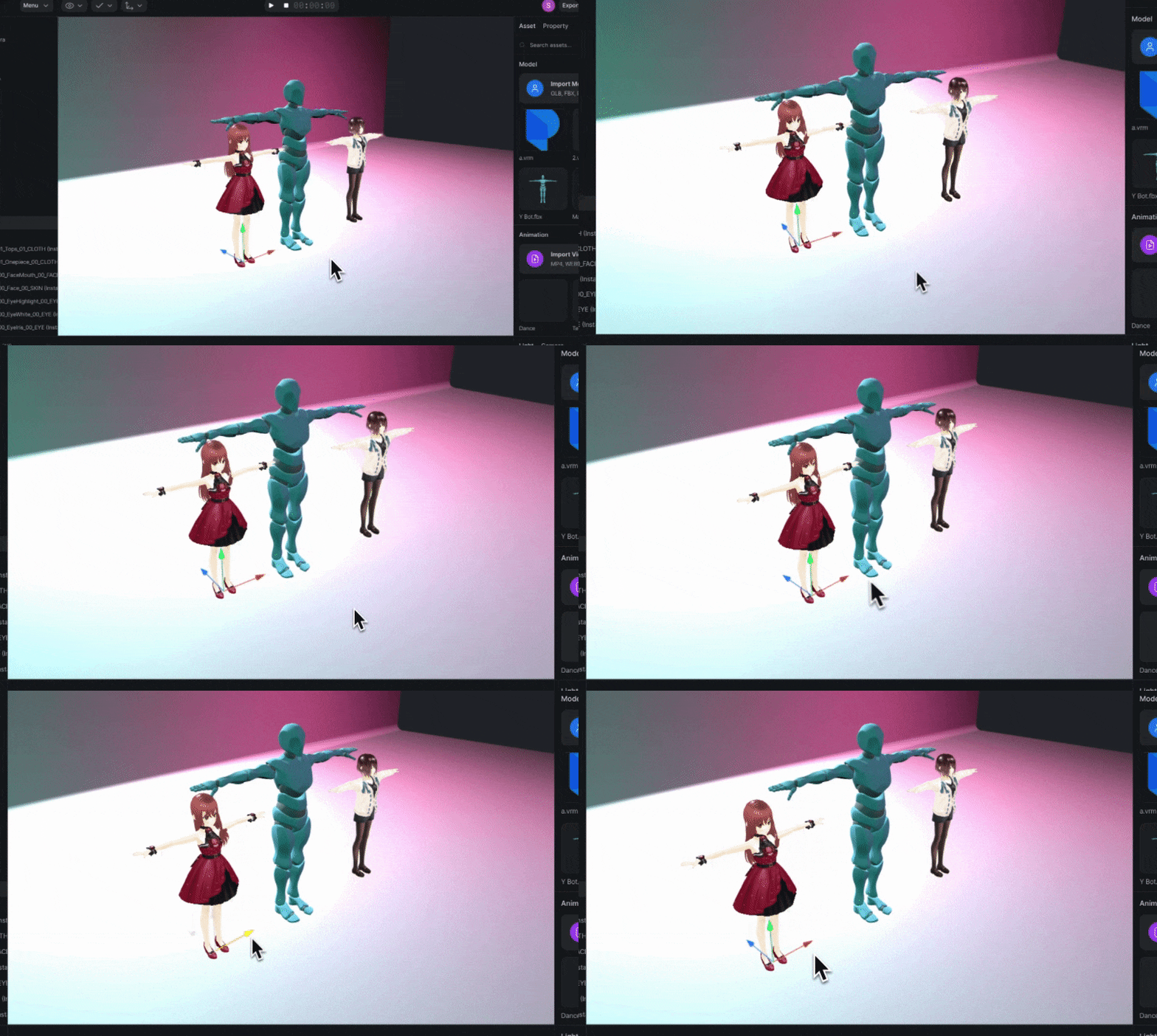
Plask Motion goes beyond basic animation by incorporating advanced physics simulations, particularly for VRM and PMX models. This feature brings a new level of realism to your 3D characters, especially in elements like hair and clothing movement.
- Physics Simulation: At the heart of Plask's physics simulation is the integration of Babylon-mmd. This provides realistic hair movement that responds to character motion and dynamic cloth behavior for more lifelike character outfits.
- Auto-Blinking: To enhance the natural appearance of characters, Plask implements an automatic blinking system for VRM and PMX models.
Import Methods
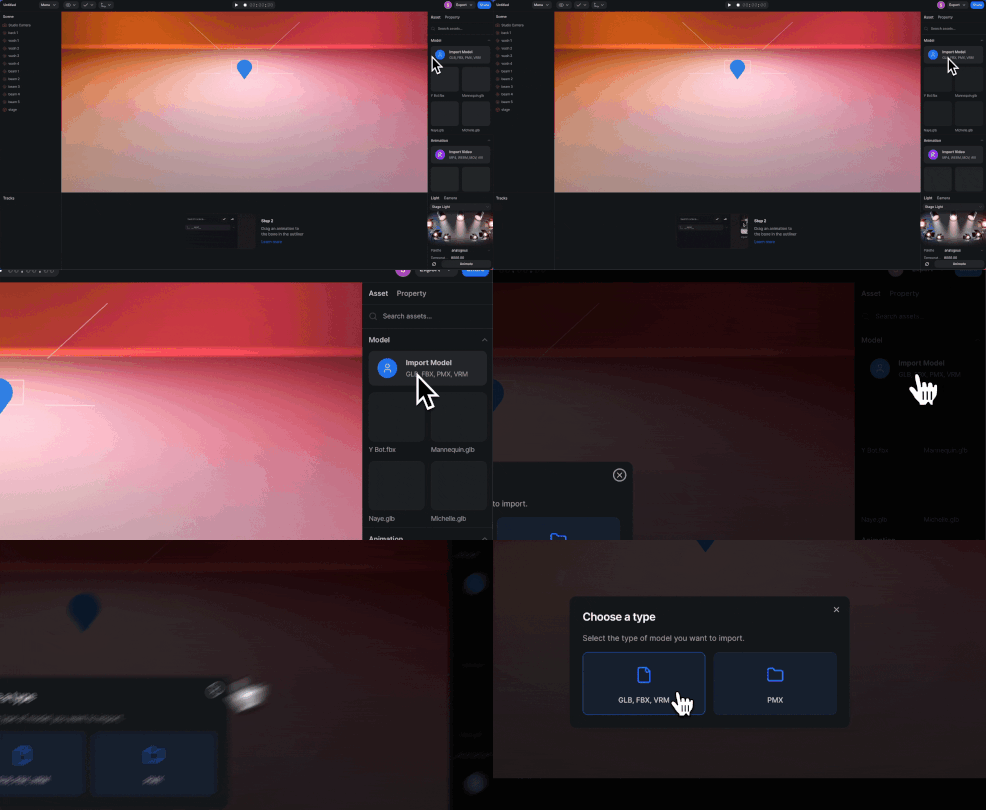
Method 1: Using the Import Button
- Click the "Import" button at the top of the Outliner.
- Alternatively, click the "Import model" button in the Asset panel.
- Select your model file from the file browser.
Method 2: Drag and Drop
Simply drag your model file from your computer and drop it into the Viewport.
Import Requirements and Policies
To ensure optimal performance and compatibility, please adhere to the following guidelines:
- File Size Limit: Maximum upload size is 50 MB.
- Model Structure: Models must have both a Mesh and a Skinned Skeleton.
- Pose: The model should be in a T-pose as its resting pose.
- Bone Count: For optimal animation, models should have a minimum of 24 source bones.
PMX Import Specifics
When importing PMX files:
- Import the entire directory containing the PMX file and its textures.
- Ensure there is only one PMX file within the directory.
Bone Structure Recommendations
While Plask can handle models with various bone structures, it's optimized for models with up to 52 specific bones. These include:

- hips
- spine
- leftUpLeg
- rightUpLeg
- spine1
- leftLeg
- rightLeg
- spine2
- leftFoot
- rightFoot
- neck
- leftToeBase
- rightToeBase
- head
- leftShoulder
- rightShoulder
- leftArm
- rightArm
- leftForeArm
- rightForeArm
- leftHand
- rightHand
- leftHandIndex1
- rightHandIndex1
- leftHandIndex2
- rightHandIndex2
- leftHandIndex3
- rightHandIndex3
- leftHandMiddle1
- rightHandMiddle1
- leftHandMiddle2
- rightHandMiddle2
- leftHandMiddle3
- rightHandMiddle3
- leftHandRing1
- rightHandRing1
- leftHandRing2
- rightHandRing2
- leftHandRing3
- rightHandRing3
- leftHandPinky1
- rightHandPinky1
- leftHandPinky2
- rightHandPinky2
- leftHandPinky3
- rightHandPinky3
- leftHandThumb1
- rightHandThumb1
- leftHandThumb2
- rightHandThumb2
- leftHandThumb3
- rightHandThumb3
Note: You can have additional bones in your character, but only these 52 will be directly involved in animation retargeting. Extra bones (e.g., for accessories) won't interfere with core animations.
Best Practices
- Ensure your model is in a clear T-pose before importing.
- Check that all necessary textures are included when importing PMX models.
- For complex models, consider simplifying the bone structure to match Plask's recommended 52-bone system for best results.
Troubleshooting
If you encounter issues during import:
- Verify that your file meets the size and format requirements.
- Check that the model includes both mesh and skeleton data.
- For PMX imports, ensure all necessary files are in the same directory.
Remember, a well-prepared model is key to smooth animation in Plask Motion. If you need further assistance, don't hesitate to contact our support team at support@plask.ai.
How can I restore a deleted default model again?
If one of our default models was removed accidentally or isn't working properly (e.g. not being animated) and you want to use it again, you can download the characters from the link below and add them to Plask.
How do you extract multi-person and include the initial pose?
Select an extraction option:
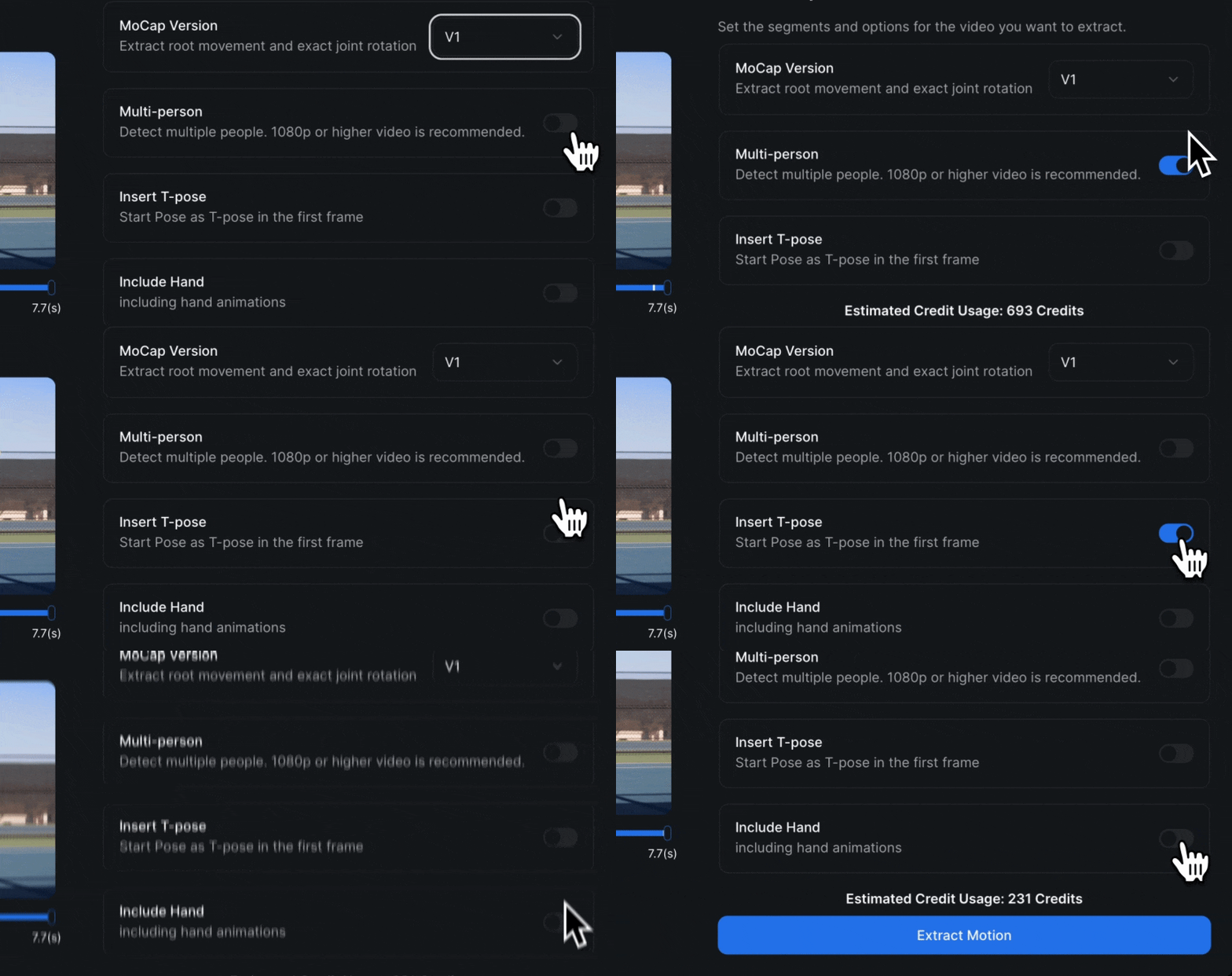
- Multi-person Tracking: If your video has more than one person, Plask can animate them all! (Just remember, this uses more of your credits.)
- T-Pose Start: This makes your character start in a T-pose (arms out like a T). It's super useful if you want to use your animation in games or other 3D software.
- Hand Animation: Want to capture finger movements too? Turn this on! (Only works with
V1) - Choose Your Star: If there are multiple people in your video but you only want to animate one, you can tell Plask which person to focus on. (This works with
V2)
Policy
- The maximum size of a video that can be uploaded is 100 MB.
- The maximum length of a video that can be requested for extraction is 9000 frames.
- For Multi-person, we recommend having around 5 people in the video.
- Single-person consumes 1 credit per frame. Multi-person consumes 3 credits per frame.
- Plask Motion does not import animations from Model files.
How can I cancel my plan?
To cancel or change your plan you have to follow these steps:
-
Login to your profile.
-
Click on your username on the top right (a window will open)
-
Select "Subscription" at the top
-
Click on "Billing" and the payment page will be opened.
-
Click on the "Cancel Plan" button at the top right
If you encounter any issues while doing this please get in touch with us via chat or support@plask.ai
How do I redeem a discount coupon on Plask?
- Login to your profile.
- Click on your username on the top right (a window will open)
- Select "Subscription" at the top
- Click on "Upgrade"
- Select the Mocap Pro monthly subscription and the payment page will be opened.
- At the payment page, click on 'Add promotion code' on the right and input the code.
- Check out and voila!
If you wish to continue subscribing to MoCap Pro before the subscription renews after a month or a year, that's great. Otherwise, be sure to cancel the subscription before it renews.
Can I do finger tracking?
Yes, you can turn on the Hand Animation feature to capture finger movements on the motion extraction menu. (Only works with V1)
How do I get an academic discount?
To subscribe to the Mocap Pro plan, simply follow these straightforward steps:
- Log in to your profile using your educational email address.
- Click on your username located at the top right corner (a window will pop up).
- Select "Subscription" at the top.
- Click on "Upgrade".
- Choose between the Annual or Monthly subscription options and the payment page will open.
Upon reaching the payment page, after entering your details, the site should display the discounted amount. If, for any reason, this doesn't occur, it might be due to the site not recognizing the domain of your educational institution. No worries – we can resolve this manually on the platform once your email is subscribed to the free trial week.
Contact us at contact@plask.ai if you need information about special academic pricing and support.
Why does my video stop loading?
There could be two reasons why this happens:
- Your video might be too long (over 1.5 minutes) or too big (over 400 megabytes), causing a delay in extraction and resulting in the hang.
- Server in peak usage. When the site is busy, the server gets overwhelmed, causing the motion extraction to stall at loading.
Here's what to do:
Test with a shorter video (1 to 5 seconds). If successful, the issue may be with the original video. Share it at support@plask.ai for investigation.
If both videos stick at loading, try another browser for extraction. Simply open the site in another browser and attempt to extract the animation from your video again.
If, even when using another browser, the site still displays the same error, please contact us so we can address the issue with the development team.
Verification issues in Sign Up
Can't sign up for email? If this is the case for you, please follow the instructions below.
A. Email not received.
- Check your spam folder first. If you entered your email correctly when signing up and did not receive a verification email, please get in touch with us via chat or support@plask.ai.
B. Verification link error: 5XX or 4XX
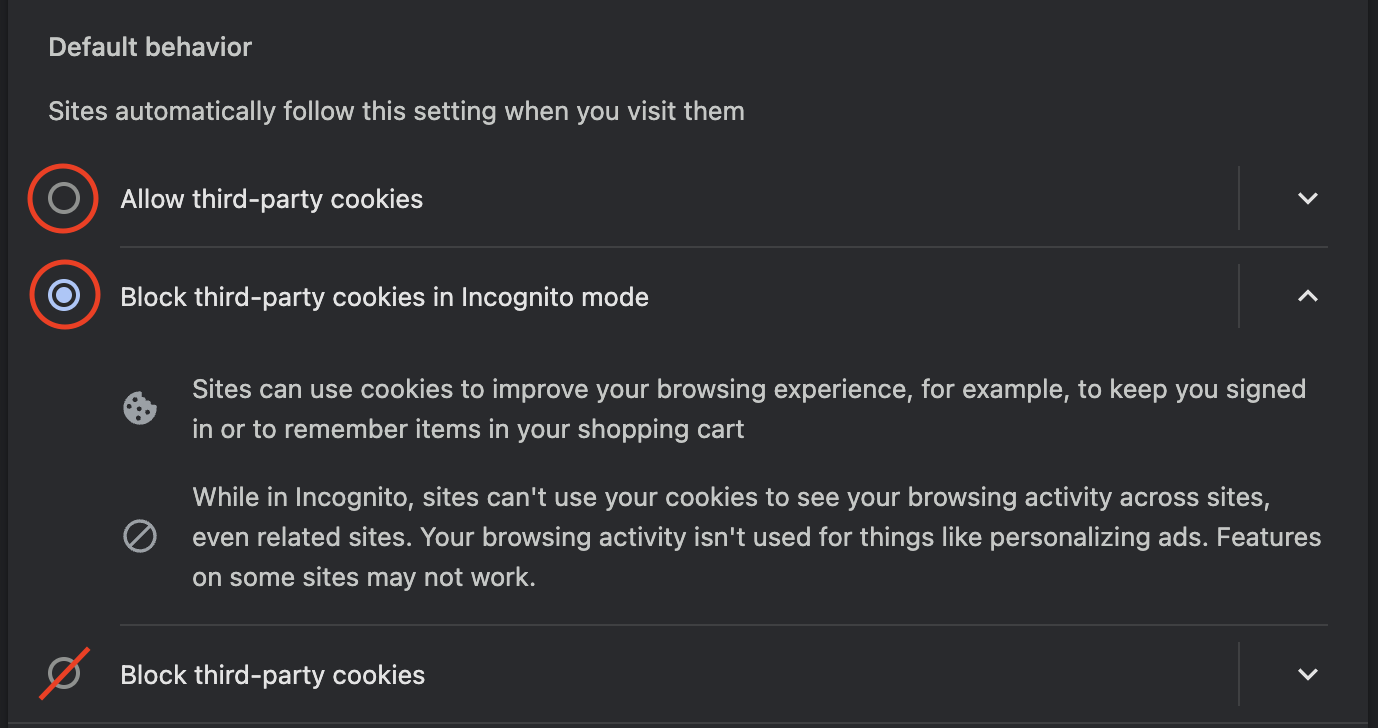
- If you enter the verification link and get a 500 error and the page does not appear, please check if cookies are blocked in your browser settings (If you use Chrome browser → chrome://settings/cookies).
- Please visit motion.plask.ai/login and try to reset your password.
- Then try to sign up again. If you can't complete signing up, contact us in chat or at support@plask.ai to delete your registration record.
C. 403 error: access_denied in Continue with Google
-
If you tried signing up through Continue with Google and received a 403 error, you may already be signed up with that email.
-
Enter the password you signed up with in a previous version or create a new account. You can also reset your password.
What is the difference between MoCap V1 and V2?
Learn the difference between MoCap V1 and V2.
What is Plask MoCap API?
- The Plask MoCap API extracts animation data such as 3D pose, camera, and more from a single RGB video.
- The Plask MoCap API is available as an AI MoCap feature in the Plask tool. Upload a video to the tool and select options like Version, Multi-tracking, and more to extract animations. The Plask MoCap API requires 1-3 credits per frame processed.
Comparison
Plask Motion has two main ways of creating animations, called V1 and V2. Think of them like different flavors of ice cream - they're both good, but slightly different:
V1is great for smooth, flowing movements.V2is awesome for more physically plausible, stable animations.
V2 deducts the same credits as V1, but with the following additional specifications
- Foot Correction: V2 recognizes the ground and compensates to make sure your feet land naturally on the ground.
- Dynamic Camera: V2 takes into account a moving and rotating Camera to compensate for global position and rotation values.
In addition, V2 allows you to choose where to extract the person in a single-person and MoCap support for vertical video.
Whats the best way to capture motion using your camera on Plask?
What are the accepted payment methods?
We currently accept all major credit and debit card brands.
Where can I find my invoices?
The invoice is automatically generated and sent by email after confirming the subscription on the payment platform. If it is the first time, it will be sent at the end of the free trial period.
You can also download the invoice by going to Profile (top right) > Subscription > Billing. Then scroll down to Invoice History where you can click on the invoice date to view and download it.
Is there a free trial for Plask?
Everyone can use Plask Motion for free with the Freemium Plan. If you want to test the paid subscription we also offer a 7 days free trial on the Standard Plan, and the Pro Plan
How do I get an academic discount?
To subscribe to the Mocap Pro plan, simply follow these straightforward steps:
- Log in to your profile using your educational email address.
- Click on your username located at the top right corner.
- Select "Subscription" at the top.
- Click on "Upgrade".
- Choose between the Annual or Monthly subscription options and the payment page will open.
When you reach the payment page and enter your details, the site should show the discounted amount. If it doesn't, it could be because the site doesn't recognize your educational institution's domain. But don't worry – we can fix this on the platform once your email is subscribed to the free trial week.
Contact us at contact@plask.ai if you need information about special academic pricing and support.
How can I cancel my plan?
Your Plask subscription, annual or monthly, will automatically renew until you cancel it. You can cancel your subscription by going to your Profile (top right) > Subscription > Billing, then click on the "Cancel Plan" button at the top right. After you cancel, you’ll still have access to all the paid features until the end of your billing cycle.
If you encounter any issues while doing this please get in touch with us via chat or support@plask.ai
Can I change my payment method?
You can change your payment method at any time in your billing settings.
How can I get a refund?
As a first-time subscriber, we offer a 7-day trial period for you to experience our service. Should you decide the service is not for you, you have the option to cancel your subscription within this timeframe to avoid any charges. After this trial period, please note that only partial refunds are available for annual subscriptions within 15 days of signing up for annual billing.
To request a refund, please contact us to support@plask.ai and we'll be happy to assist you.
What’s the best way to capture motion using your camera on Plask?
Your next animation begins with our easy motion capture
Plask helps you create professional-quality animation with ease. However, there are a few best practices to follow when it comes to capturing motion with your video.
To ensure the best animation possible, it all starts with quality in your motion capture. To get the best capture, follow these guidelines:
-
Please use horizontal video: Plask may not recognize person well in vertical videos. If you're not seeing great results with vertical video, try adding padding or margin on the left and right sides.
-
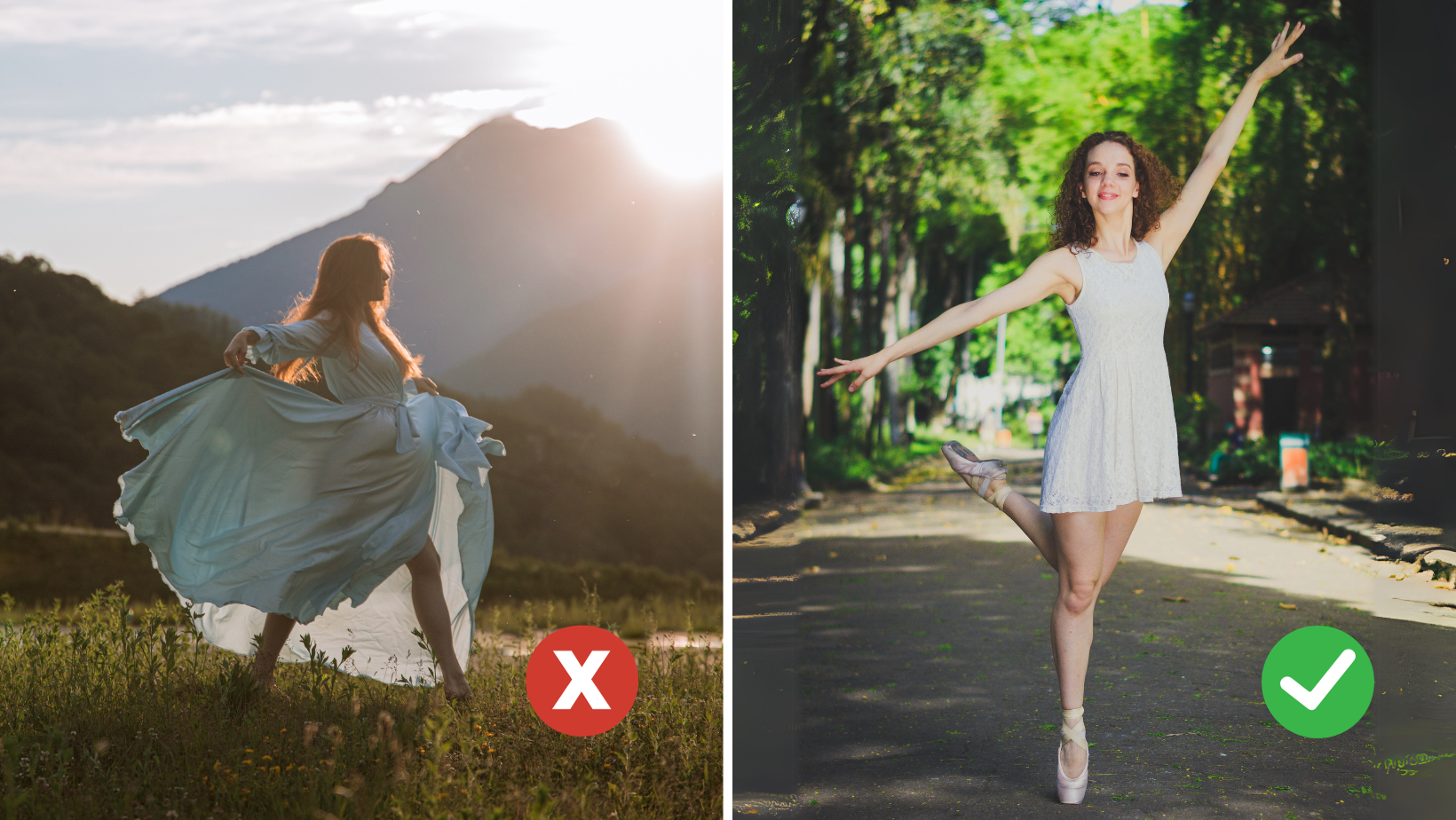
Recognition Limited to Human Poses: Plask's software is designed to recognize only human forms. Capturing the movement of non-human objects for animation is not compatible with our system. Also keep in mind that baggy or oversized clothing can confuse our algorithm, wearing clothing that defines the human shape will ensure a better result.
-
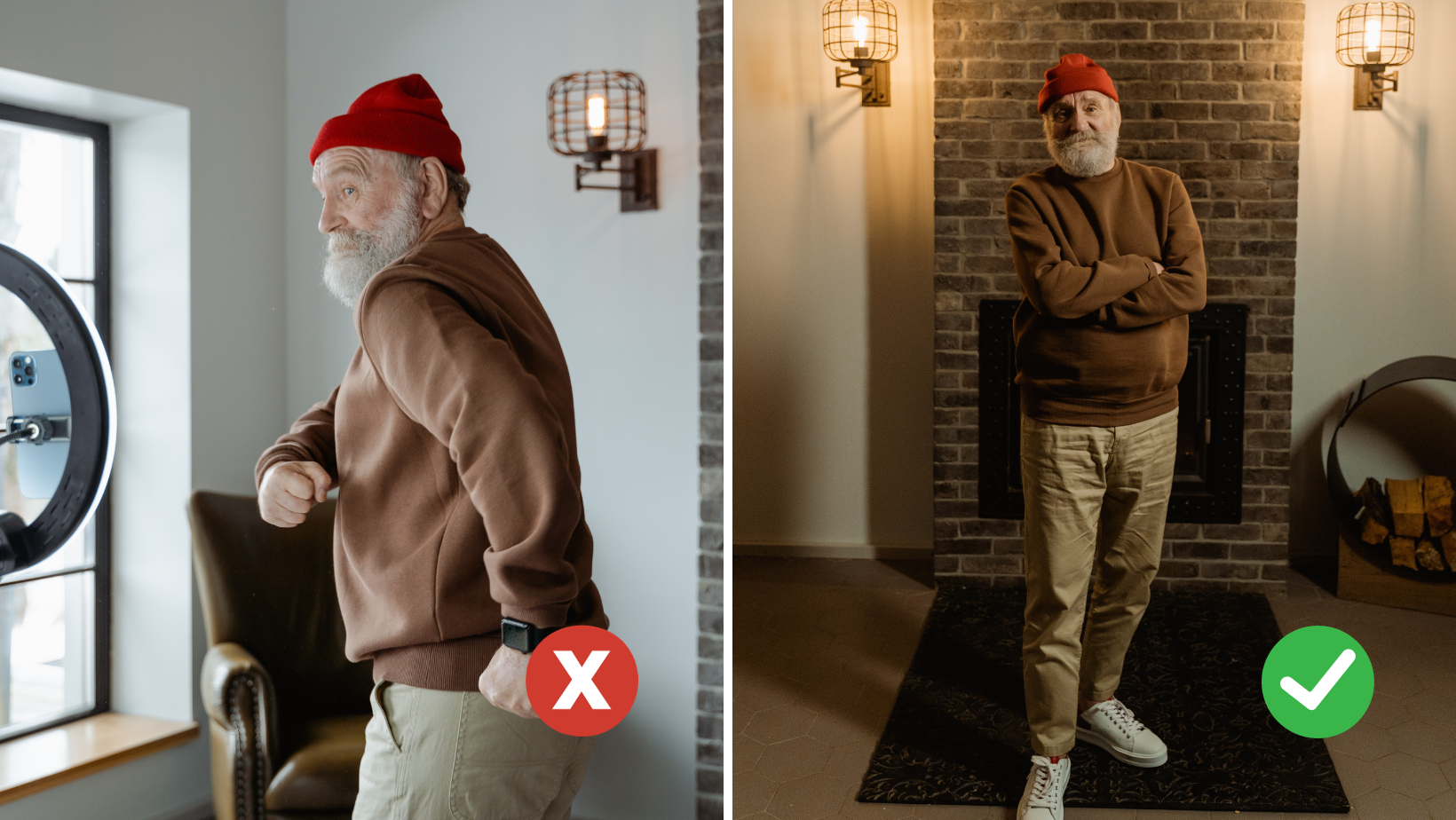
Capture the Entire Body: For optimal results, ensure that the video captures the full body of the individual in all scenes intended for animation. This comprehensive capture approach provides greater flexibility during the animation process.
-
Minimum Video Resolution of 720p Recommended: Videos with a resolution lower than 720p may compromise the quality of the motion capture.
-
Ensure Clear Visibility of the Subject: For precise motion capture, the individual in the video should stand out from the background. Avoid any blending or overlap with the surroundings. Additionally, ensure that no limbs are cut off from the frame. It's advisable to maintain a margin of space around the body in the full-body shot.

-
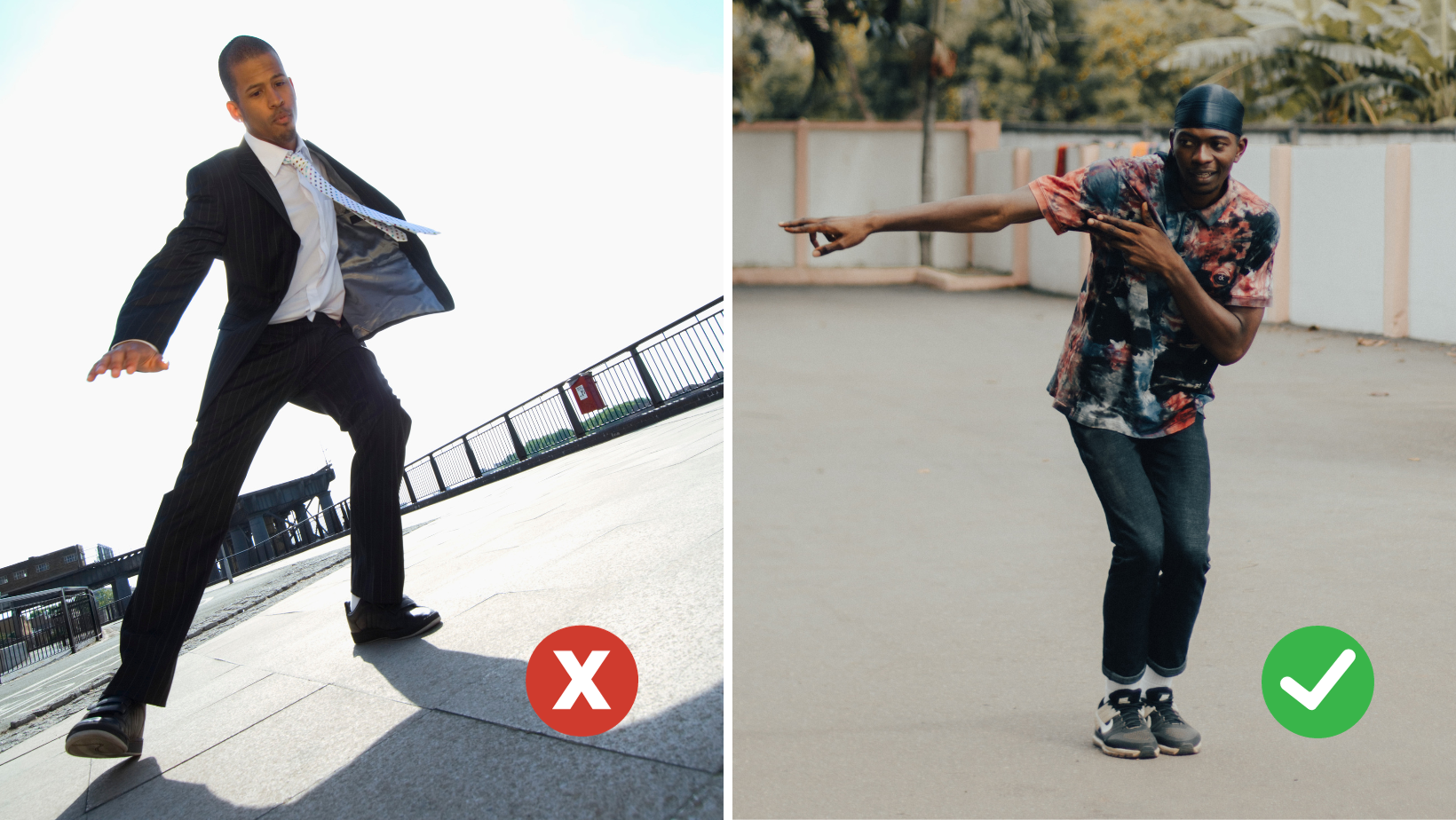
Maintain Optimal Recording Angles: For best results, record the subject's motion from a direct head-on angle to avoid skewed angles that can adversely impact the animation quality.
-
Adhere to Supported Video Specifications: Plask currently accepts videos in mp4 and webm formats. Ensure your video does not exceed 100 megabytes and is within a duration range of 3 seconds to 5 minutes.
Following these simple guidelines will ensure you have the best motion capture to create the desired animation effect.
For the Multi-person Feature: In addition to the general guidelines provided earlier, please consider the following specific points:
- Simultaneous Motion Capture: Capture the movements of multiple individuals at once, especially in scenarios like sports, dance, and action sequences. Ensure the camera remains stationary during recording.
- Avoid Overlapping of Individuals: Ensure there are no sections in the video where individuals overlap. Overlapping may result in inaccurate or flawed motion capture.
- Limit to Fewer than 10 Individuals: For optimal performance, it's best to feature fewer than 10 individuals in the video.
- Maintain a Minimum Video Resolution of 720p: Videos with a resolution below 720p might compromise the motion capture quality.
- Stay Within 1800 Frames and Under 1 Minute: To calculate the total frames, use the formula: Total Frames = Video Duration (in seconds) x Video Frame Rate (fps).
How to extract motion from a video?
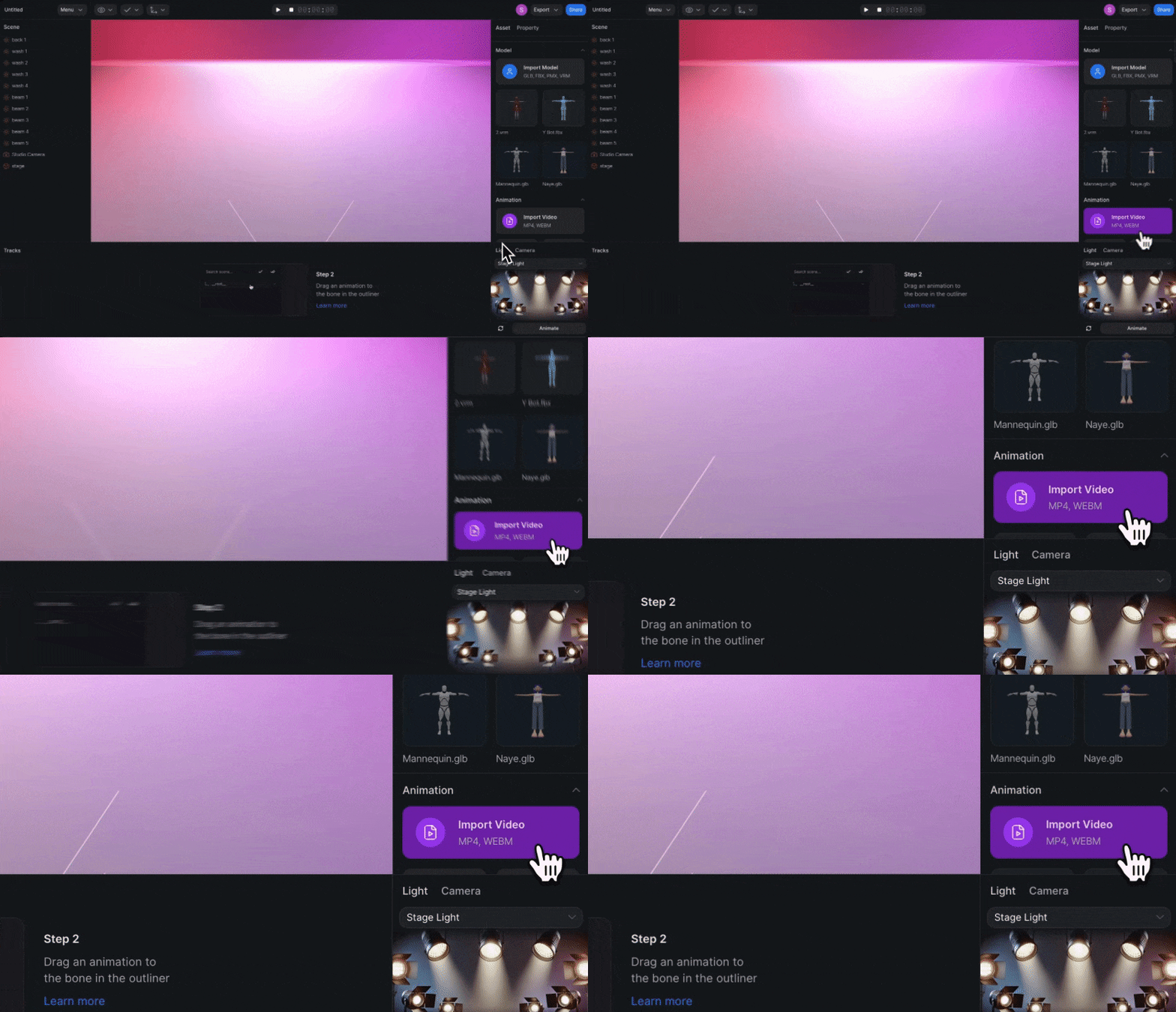
- Look for a button that says "Import Video" in the Asset panel.
- Click it, and a window will pop up showing your computer's files.
- Find the video you want to use and select it.
Keep in mind that not all videos work perfectly for 3D animation. Here are some tips:
- Use a video where the person's whole body is visible.
- Make sure the lighting is good so we can see all the movements clearly.
- Try to have a simple background without too many other people or objects moving around.