
How to apply the foot lock to the extracted motion?
The foot lock is not yet available in the new version of Plask but it will be released soon!
Here we show you how to apply it.
Features
Import video file
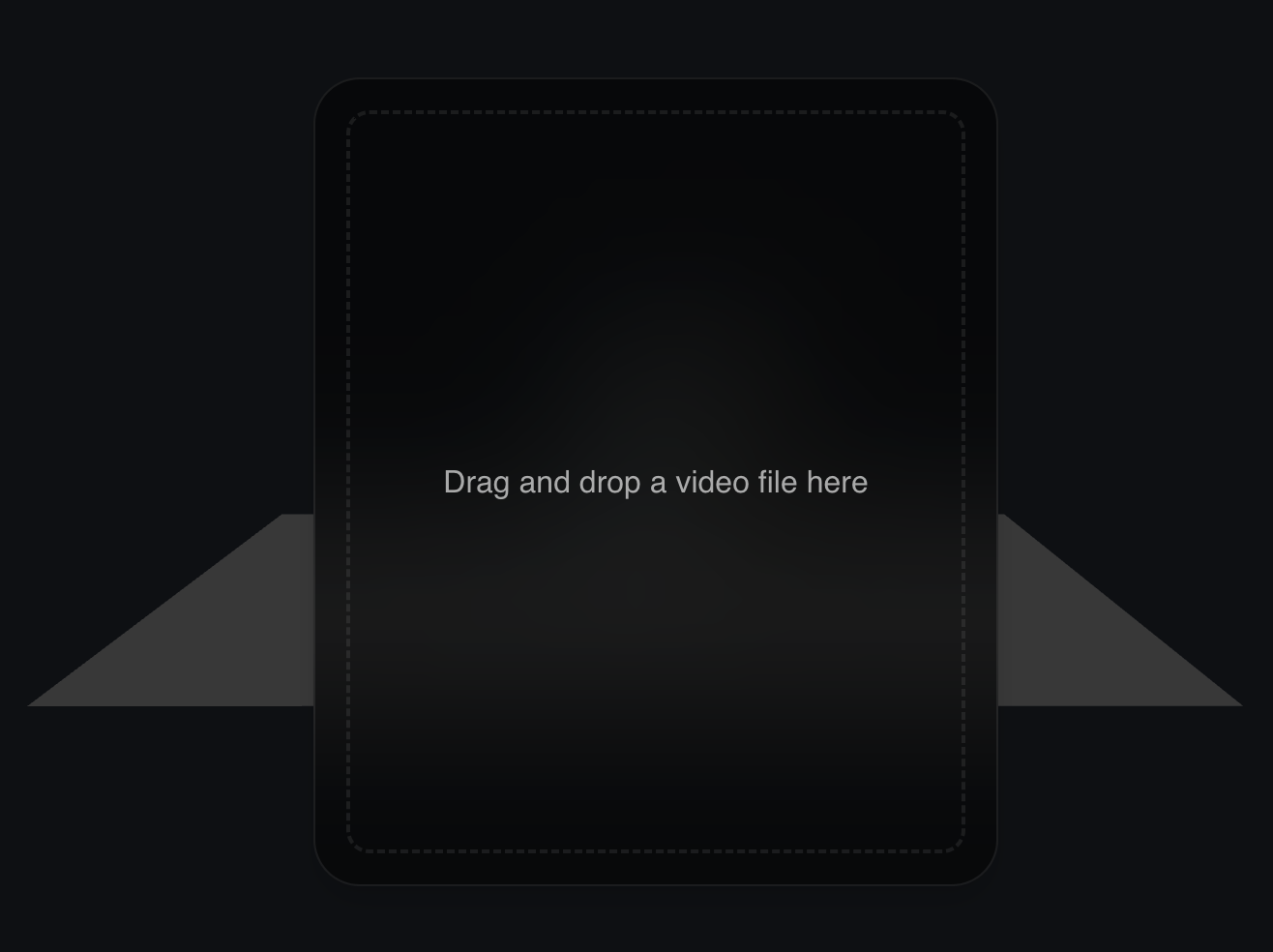
When you click the "Import Video" button in the Asset panel, you will see a drop zone for the video file. Drop the video file into the zone and the video will appear in the modal.
Please refer to this doc for a video guide to extracting quality animations.
Trim a video
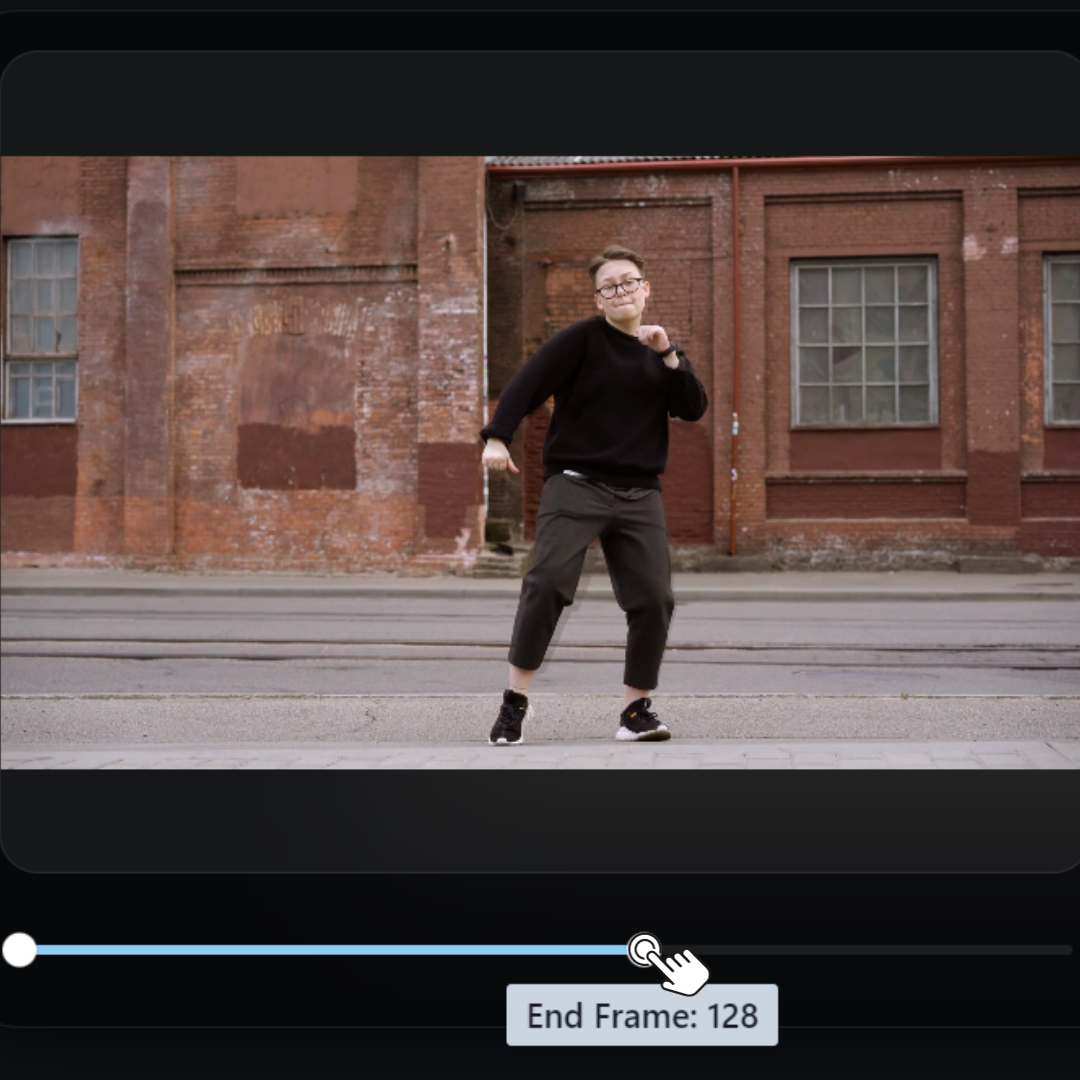
Adjust the left and right handles to specify the section to extract.
For a video guide to extracting quality animations, see What's the best way to capture motion using your camera on Plask? in Docs>FAQ.
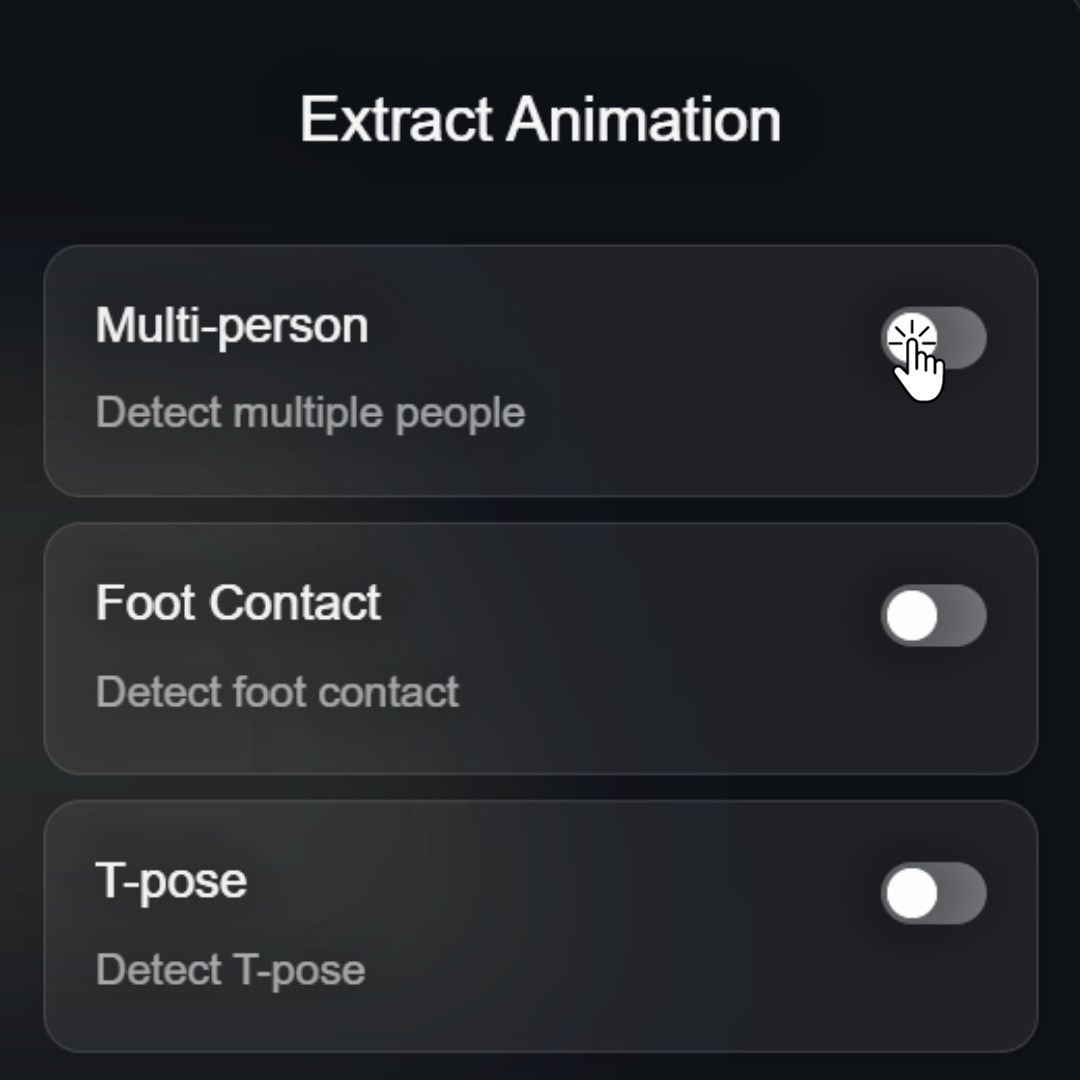
Select an extraction option:
-
Multi-person: This option tracks and extracts multiple people in the video. In order to extract multi-person video successfully, please make sure to follow our Video Requirements guidelines.
-
Foot Contact: This option recognizes feet and the ground to avoid slipping when feet make contact.
The Foot Contact feature will be added soon in the new version.
-
T-Pose: This option sets the first frame of the extracted animation to T-pose. This is useful for retargeting in game engines, etc.
Extract an Animation asset
In the Video modal, press the Import button to add the Animation asset. When the extraction is complete, the video thumbnail is set and can be applied to the Model.
Notes: Do not close or refresh the window while the extraction is in progress.
Video condition
To ensure the best animation possible, it all starts with quality in your motion capture. To get the best capture, check our Video Requirements.